Bulk Download Bing Image Search Results
Stop saving images manually. This bulk download tool allows you to grab hundreds of Extra Large photos and 4K wallpapers from Bing instantly in full resolution.
Downloading Images Manually
- Right-click 'Save image as' one by one — wastes hours on large galleries
- Get only compressed thumbnails, not Extra Large originals
- Animated GIFs break or save as static images
- No way to batch download 4K wallpapers meeting your size requirements
- Browser extensions require permissions and often stop working
With NeoDownloader
- One-click bulk download — grab all images at once, 100, 200, or more
- Extracts original source URLs to download Extra Large pictures
- Animated GIFs preserved with full motion — no broken frames
- Use Bing's 'At least' filter + bulk download for 4K wallpaper collections
- Standalone desktop app — works offline, no browser dependencies
How to Download from Bing Image Search in Bulk
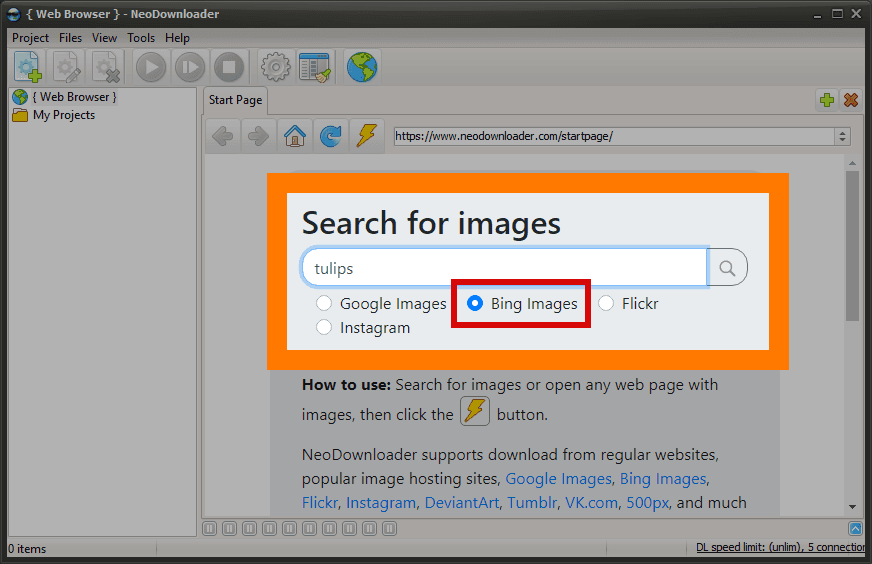
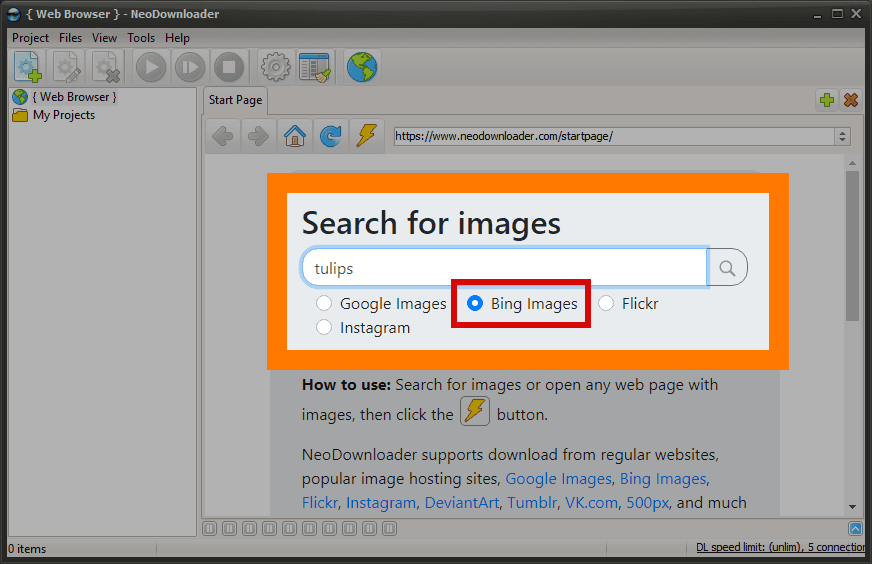
Type Keywords & Press Enter
Launch NeoDownloader. Simply type your search term into the address bar. The built-in browser loads Bing Image Search results automatically — no need to copy-paste URLs.
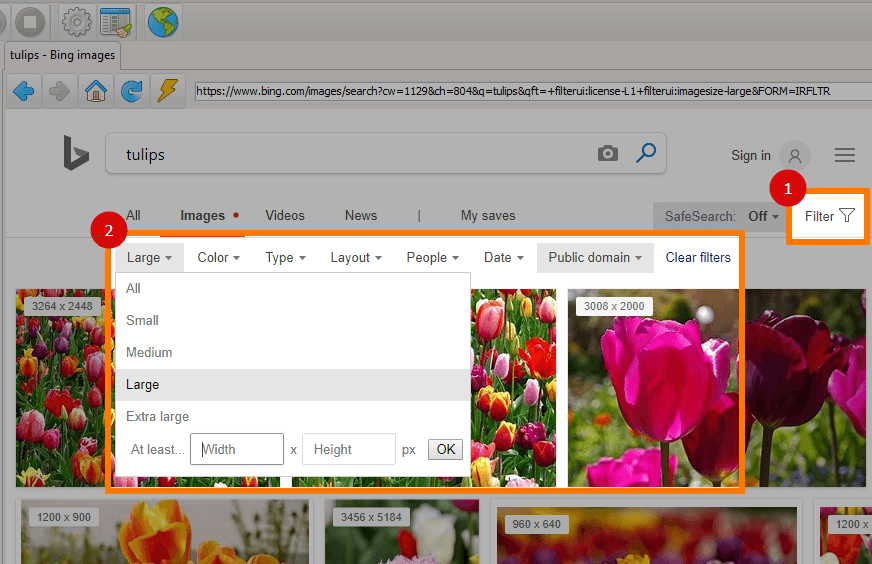
Search and Use Bing's Unique Filters
Search for any topic and apply Bing's powerful filters: Extra Large size, Layout (Wide/Tall/Square), People detection, or Animated GIF. Scroll to load more results.
Click Download — Done!
Click the 'Download' button. The app will save all pictures found on the page to your hard drive — in parallel, up to 20 at once. Extra Large images, GIFs, and wallpapers are saved in full resolution.
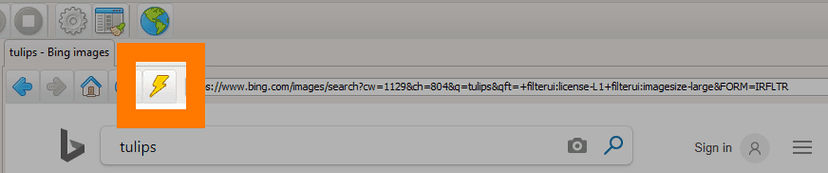
Click the lightning button to start
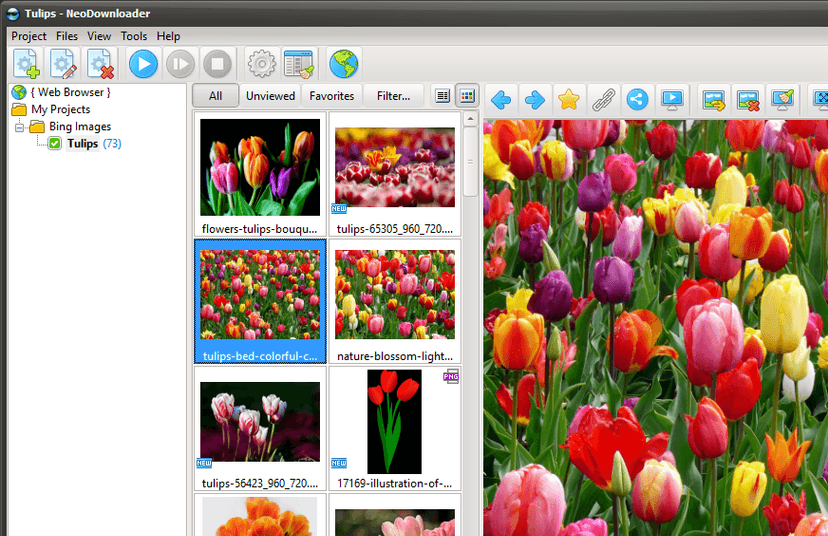
Images download automatically
Bing-Exclusive Features in NeoDownloader
Bing Images offers filters that Google doesn't have — and NeoDownloader lets you bulk download the results:
Extra Large + Custom Size
Set minimum dimensions like 3840×2160 for 4K wallpapers. Download only images that meet your resolution requirements.
Layout Filters
Filter by Wide, Tall, or Square aspect ratio. Perfect for desktop wallpapers, phone backgrounds, or social media.
People Detection
Find portraits with "Just faces" or "Head & shoulders" filters. Great for profile photos and headshots.
Animated GIF Filter
Dedicated filter for animated GIFs. Find and download animations with preserved motion — no broken frames.
What You Get with NeoDownloader
Finding the Original Source
Need to check image licenses or find the original author? NeoDownloader saves the source webpage URL for every downloaded image.
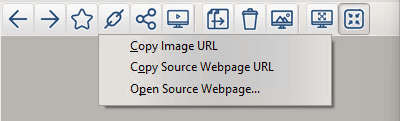
Click the Link button in viewer toolbar to copy or open the original webpage.
Tip: Bing offers granular license filtering (Public Domain, Creative Commons, Commercial Use). The source webpage contains exact license terms for attribution.
Frequently Asked Questions
Is there a Bing Image Search Downloader for PC?
Yes, NeoDownloader is a dedicated desktop app designed to bulk download images from Bing Search results. It works directly on your Windows PC — no browser extensions or online services required.
Can I download full size images from Bing?
Absolutely. Unlike browser extensions that often save thumbnails, NeoDownloader extracts the original full-size image from the source website. You get Extra Large resolution, not Bing's compressed previews.
Can I download animated GIFs?
Yes. Use Bing's Type → Animated GIF filter, then download with NeoDownloader. GIF animations are preserved in the downloaded files — no broken frames.
How do I download 4K wallpapers?
Use Bing's Size filter with "At least" option and set 3840×2160. Add Wide layout filter for landscape orientation. Then bulk download with NeoDownloader.
When should I use Bing instead of Google Images?
Use Bing when you need: Extra Large size with custom dimensions, Layout filters (Wide/Tall/Square), People detection (faces, head & shoulders), or dedicated Animated GIF search.
What are the limits of the free version?
The free version allows 100 files per project with no time limit. You can create unlimited projects. Premium ($39.95$29.95, one-time) removes all limits and adds HD/4K video support.
Why Use NeoDownloader for Bing Image Search?
Extra Large + Custom Size
Download images at 3840×2160 or higher. Use Bing's 'At least' filter to set minimum dimensions for 4K wallpapers.
Layout Filters
Filter by Wide, Tall, or Square aspect ratio. Perfect for desktop wallpapers, phone backgrounds, or social media posts.
Animated GIF Support
Download animated GIFs with motion preserved. Bing's dedicated GIF filter + NeoDownloader = perfect animation collections.
One-Click Bulk Download
Click once, download all visible images. No more tedious right-click, Save As, choose folder, repeat.
Ready to Download from Bing Image Search?
Join thousands of users who save images from Bing Image Search every day.